
Install the app and turn on notifications
The club website works as an app on your phone: an icon on the home screen that opens full screen, with nothing to download from any store. And with notifications turned on, your phone lets you know even when the website is closed.
Notifications you'll get
A reminder 1 hour before your match or class.
When someone adds you to a booking.
When one of your matches or classes is cancelled.
When a pending payment is about to expire.
When a match is returned to you.
Instructors and administrators also get their own notification groups (class requests, membership and cancellation requests).
iPhone and iPad
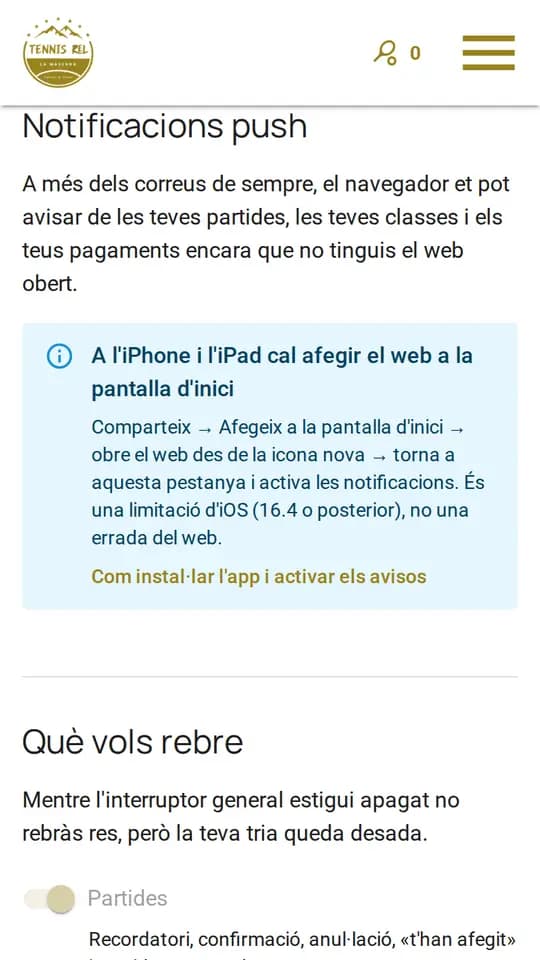
Open this website in Safari (not Chrome or any other browser).
Tap the Share button (the square with an arrow pointing up) in the Safari bar.
Scroll down, choose Add to Home Screen and tap Add.
Close Safari and open the app from the new icon on your home screen.
Log in with your username. The app opens straight on your account.
Go to the Notifications tab of your account. If you are not there, open the ☰ menu and tap Account settings.
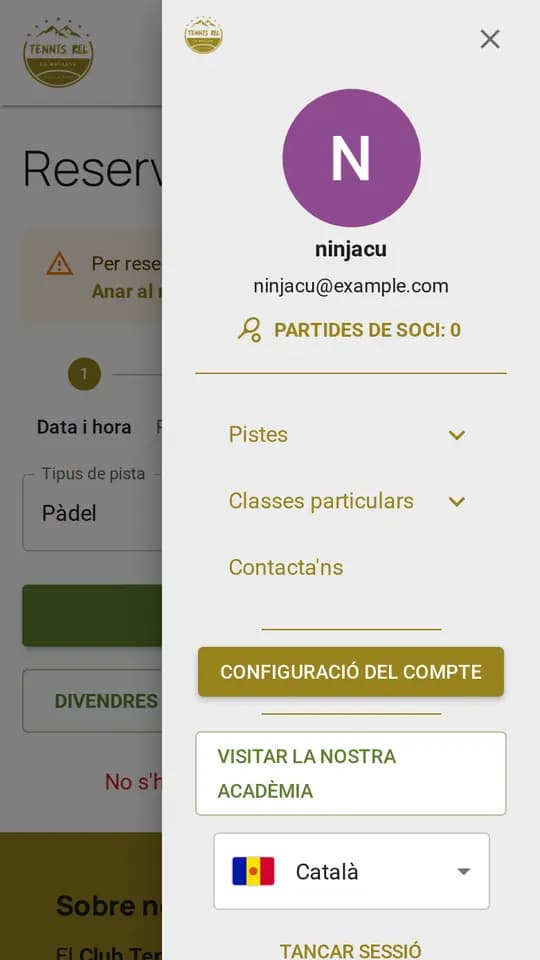
The ☰ menu with the “Account settings” button 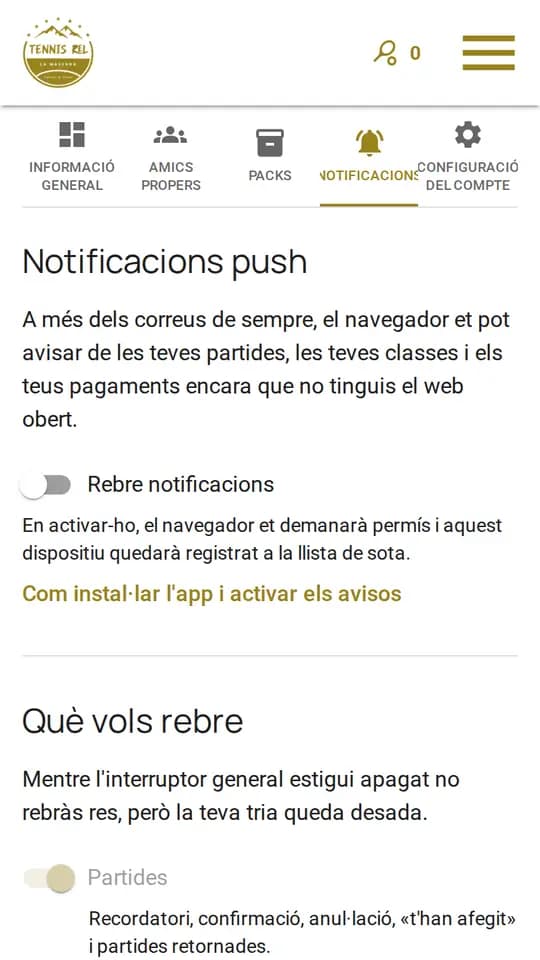
The Notifications tab with the switch off Turn on the Receive notifications switch.
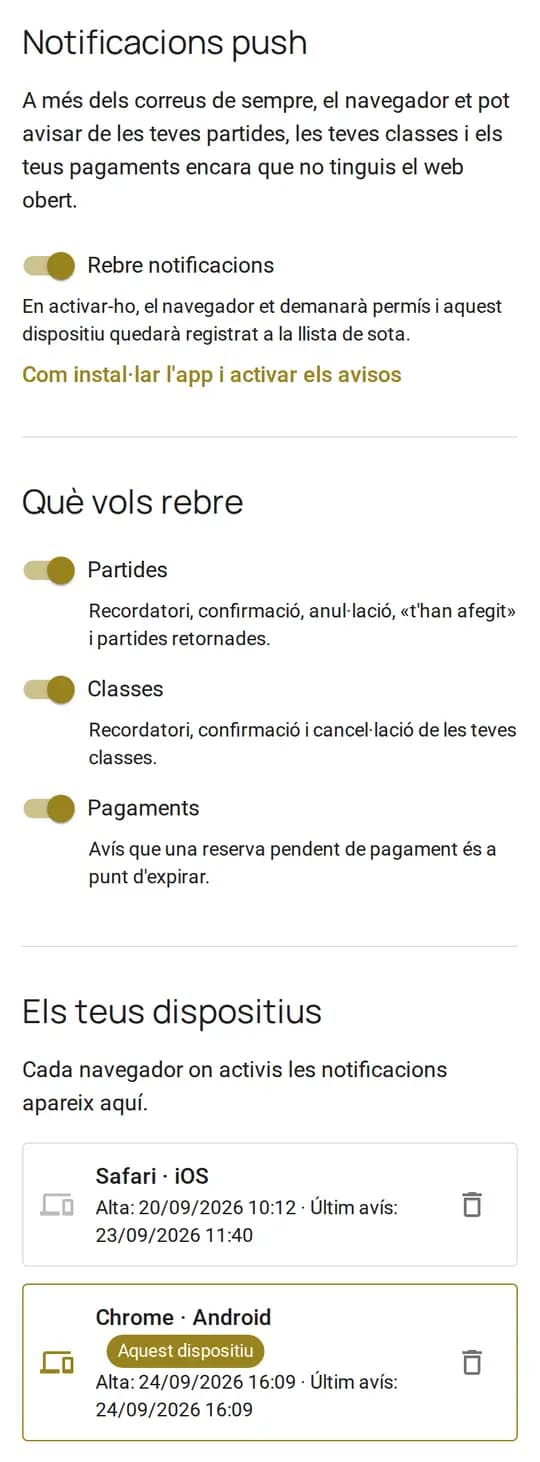
Notifications on: notification groups and list of devices When your phone asks whether to allow notifications, tap Allow. Done!
Android
Open this website in Chrome.
Tap the ⋮ menu (three dots) at the top right.
Choose Install app (on some phones it is called Add to home screen).
Confirm by tapping Install.
Open the app from the new icon on your home screen.
Log in with your username. The app opens straight on your account.
Go to the Notifications tab of your account. If you are not there, open the ☰ menu and tap Account settings.
The ☰ menu with the “Account settings” button The Notifications tab with the switch off Turn on the Receive notifications switch.
Notifications on: notification groups and list of devices When your phone asks whether to allow notifications, tap Allow. Done!
Choose what you receive
Below the main switch there is one switch per group (Matches, Classes, Payments…). Turn off the ones you don't want: your choice is saved at once and applies to all your devices. Further down you'll find the list of devices where notifications are on.
If it doesn't work
Did you deny the permission? Your phone won't ask again. Allow notifications for this website again in the browser or system settings (on the iPhone: Settings → Notifications → the club app) and turn the switch back on.
Each device is turned on separately. If you turned them on on your computer, you also need to turn them on on your phone (and vice versa).
On the iPhone, only from the icon. If you open the website from Safari there are no notifications: always open the app from the home screen.